More Time with Families,
Starting With the Obituary
Case events come straight from the obituary your team already wrote.
Streamline Your Process
Benefits of AI Event Creation

Less retyping
Event details move from the obituary to the case on save. No second pass through the Events tab.
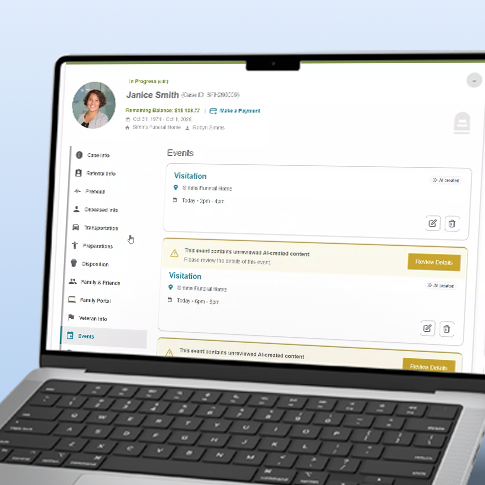
Details that match
Your obituary and case events come from the same source, so times and locations stay in sync.

Your team stays in control
AI Event Creation only steps in on cases with no events yet. Every entry is marked for staff review before it's used.

Easier for families
Events can reach the obituary page sooner, in a structured format families can read at a glance.
KNOW THE PROCESS
How It Works
Step 1: Start with the Obituary
Open a case in Tribute Management Software and write or paste your obituary text. Use the 'Generate Obituary' feature for a helpful starting point.
Step 2: Save and Scan
AI Event Creation scans it for events. A message at the top of the page shows how many it found and loaded to the case.
Step 3: Review the events.
Select Review Events to jump to the Events tab. Each new event is labeled AI Created and carries a banner until your team reviews it.
Step 4: Add what the case needs.
Select Review Details or Edit to check each event. You can add family arrival time, staff arrival time, staff assignments, and website export. Any new locations save to Places.
Final: Confirm
Check the box marked "I have reviewed AI-created Event details from the Obituary." Confirmed events appear on your Calendar and Whiteboard.
See What Else TMS Handles Day to Day
AI Event Creation is one part of Tribute Management Software. Tell us about your funeral home, and we'll show you the rest.